Admin Guide
Approval Gates
An approval gate makes a tool wait for a human yes on each use. The agent's first call is parked, a person reviews a redacted preview of the arguments in the Ambassador web UI, and the agent then repeats the same call to run it. Gates apply to remote-agent (/mcp) grants; the stdio client is refused.
What a gate is
A gate is a per-tool setting, set by an admin. When a gated tool is called, Ambassador does not run it. It creates an approval request instead, and the call proceeds only after a person approves that request.
- Admin-set. Only an admin can turn a gate on or off. An agent grant, a user or a client cannot remove it.
- Per tool, per MCP. The gate is keyed on the MCP and the tool name, not on a tool definition. If a downstream MCP changes a tool's definition, the gate stays.
- MCP default. An MCP can also have a default that applies to tools without their own setting. It is checked at call time, so turning it on gates tools that were already discovered, and turning it off un-gates the ones without their own setting.
- Every path. The gate sits in the same pipeline as every tool call, after authorization and before the call is sent downstream. Direct
/mcpcalls andambassador__call_toolare gated the same way. The stdio client's path refuses gated tools (see below); it never skips the gate. - Scope first. A tool the grant may not call (scope, allowlist, group policy, kill switch, pin) is refused exactly as before. It creates no approval request and tells the agent nothing about gating.
A gate is a policy, not isolation. Once approved, the tool runs with the user's credentials like any other call.
Owner or admin approver
Every gated tool names who may approve it. There is no default; the admin must choose.
| Approver | Who can decide | Who else sees it |
|---|---|---|
| Grant owner | The user who owns the agent grant that made the call | Admins see it in the queue, read-only |
| Admin only | Any admin | The grant's owner sees it, read-only |
An admin cannot decide an owner-class request, unless it comes from their own grant, which they decide as its owner. An owner cannot decide an admin-class one. An admin who owns the agent can approve an admin-class request from their own grant; that is audited as a self-approval. Set approvals.require_distinct_admin: true to refuse it.
Setting a gate
In the admin UI, open the MCP's detail page and use the Human approval panel: pick Grant owner or Admin only for each tool, or turn on the MCP-wide default for every tool without its own setting.
Over the admin API:
# Gate one tool
curl -k -b cookies.txt \
  -X PUT https://localhost:9443/v1/admin/mcps/:mcpId/tool-policies/:toolName \
  -H "Content-Type: application/json" \
  -d '{"requires_approval": true, "approver": "admin"}'

# MCP-wide default
curl -k -b cookies.txt \
  -X PATCH https://localhost:9443/v1/admin/mcps/:mcpId/approval-default \
  -H "Content-Type: application/json" \
  -d '{"default_requires_approval": true, "default_approver": "owner"}'
approver is required whenever requires_approval is true. Policy changes are audited.
What the agent sees
- The agent calls the tool. The result comes back as an error (
isError: true) with statusapproval_required, anapproval_id, anexpires_at,retry_after_seconds(10) and anapproval_url. The same object is in_meta["ambassador/approval"]andstructuredContent. - A person approves in Ambassador (below).
- The agent repeats the identical call: same tool, same arguments. Ambassador finds the approved request and runs the call.
Notes for agent authors:
- Key on the structured field. Read
_meta["ambassador/approval"](ormetadata.approvalon/v1/tools/invoke), not the text. Ambassador strips everyambassador/_metakey from downstream results, so a downstream tool cannot fake it. - Single use. An approval runs one call. A second identical call is held again.
- Exact arguments. The approval is bound to a hash of the exact arguments that will be sent, after any wrapper such as
ambassador__call_toolis unwrapped. Different arguments, another grant or another client need a new approval. - Polling. While a request is pending, repeating the same call returns the same
approval_id. On/mcpyou can also send_meta["ambassador/approval_id"]on thetools/callrequest, for a direct call or throughambassador__call_tool, to check that request's status. - Other results.
approval_denied(a person refused),approval_expired(call again to start a new request) andapproval_unavailablewith a reason:arguments_too_large,too_many_pending,rate_limitedornot_supported_for_client. - A downstream failure doesn't give the approval back. The approval is consumed when the call is sent.
Expiry
| State | Default | Config key (approvals.) | Range |
|---|---|---|---|
| Pending, waiting for a person | 15 min | pending_ttl_seconds | 60 s to 24 h |
| Approved, waiting for the retry | 10 min | approved_use_ttl_seconds | 30 s to 1 h |
An approval is also capped by its grant's own expiry. An approved request that is not used in time expires unused.
Limits
To keep a persistent agent from flooding the queue, Ambassador allows at most 5 open requests per grant and 20 per user, and 10 new requests per minute per grant. Repeating the same call reuses the open request. After 3 denials of the same tool on the same grant within an hour, further calls return approval_denied for an hour without creating a request.
stdio is not supported in v1
The Ambassador Client (stdio) has no agent grant, and approvals are tied to a grant. In v1 a gated tool called from the stdio client is refused with approval_unavailable / not_supported_for_client, and no request is created. It does not run without approval. Use a remote-agent grant (/mcp) for gated tools.
Approving: the queue
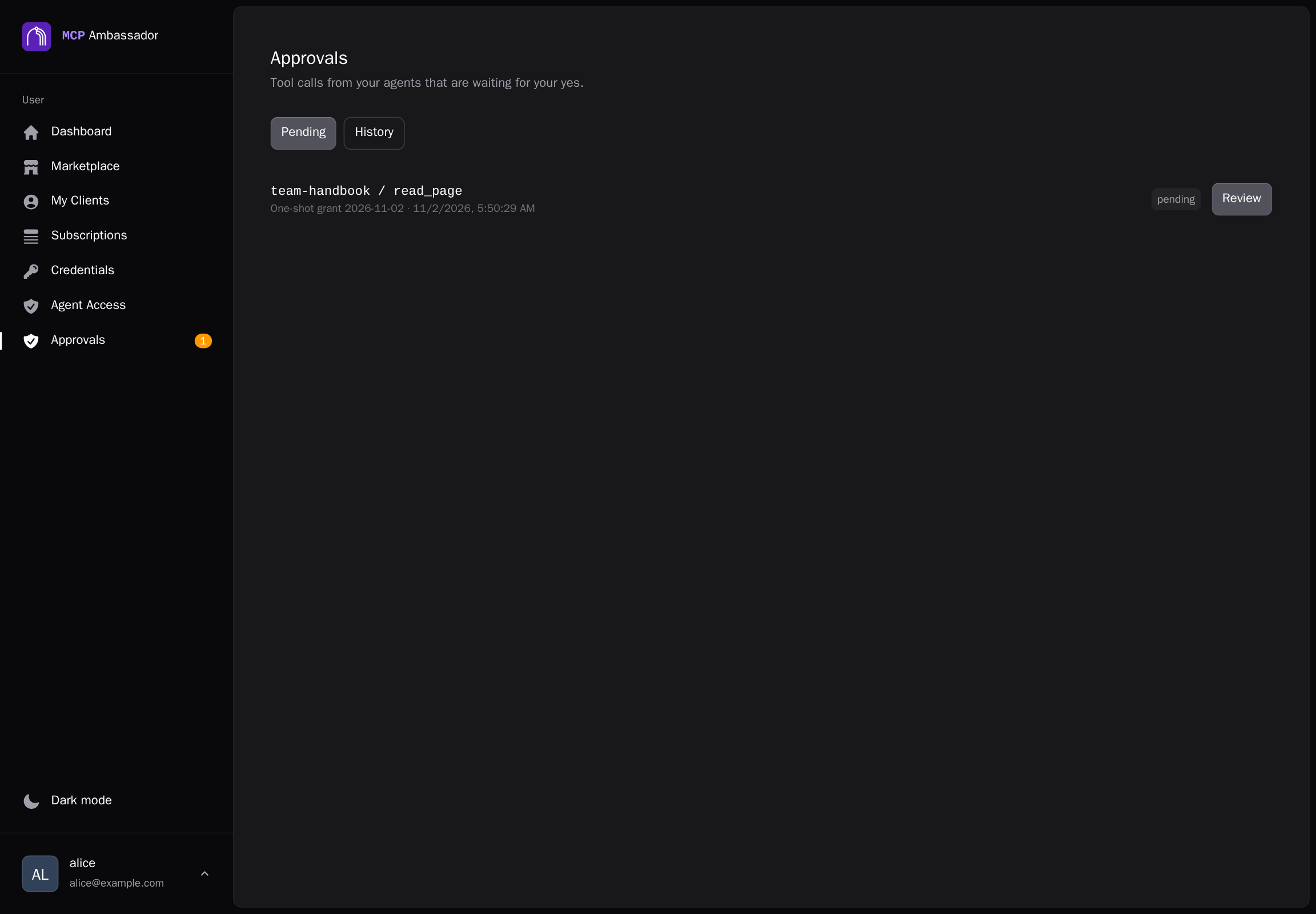
Pending requests appear on the Approvals page in the web UI. A user sees requests from their own agents; an admin sees all of them. Requests that are not yours to decide are shown read-only, with an admin only badge where it applies. The page has pending and history views, and the approval link the agent received opens the same request.
Full-preview rule
The decision dialog shows the tool, the agent and a redacted preview of the arguments the agent wants to send. Arguments over 8 KB cannot be approved.
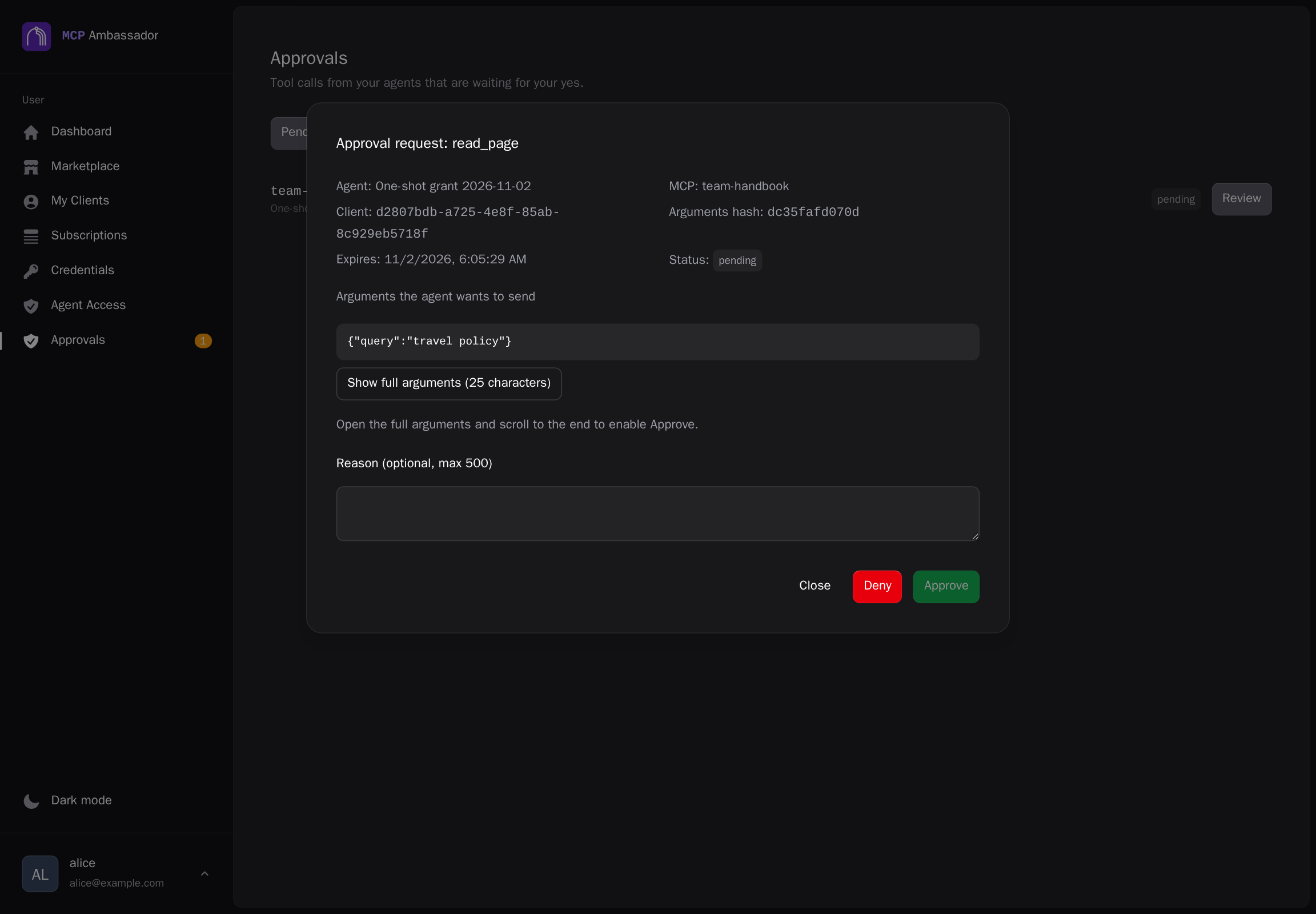
- You must open the full arguments and scroll to the end before Approve is enabled.
- The preview is plain text, never rendered as HTML. Control, zero-width and bidirectional characters are shown as visible
⟨U+XXXX⟩markers instead of being hidden. - Secrets are redacted in the preview and every redaction is visibly marked (
[REDACTED],***REDACTED***). The approval is still bound to the real arguments. - Arguments over 8 KB (canonical form) get no approval request at all (
arguments_too_large). That way nothing can be approved from a truncated preview. - If the tool's definition changed since the request was created, the queue says so, and the approval will not be used (see below).
List views never include the arguments. They are returned only for a single request, to someone allowed to see it, and are cleared once the request is denied, expired, used or voided. An approved request keeps its arguments until it is used.
Step-up password
Deciding an admin-only request requires you to re-enter your password. A successful re-entry is valid for 5 minutes for that session. If it has lapsed, the dialog asks for the password and retries the decision once. Wrong passwords are rate-limited and audited. Windows are kept in server memory, so after a server restart each admin enters their password once.
Requests approved by the grant owner do not ask for the password in the current release.
Step-up protects against a stolen session cookie or a forged request. It does not protect against someone who holds both your live session and your password.
Who can decide
Decisions are accepted only from a signed-in browser session with a CSRF token. An admin API key, an agent token or an OAuth token is refused on every decision route, so a leaked key or a compromised agent cannot approve its own request. Approving needs the arguments hash the dialog displayed, so a request that changed under you is refused.
What voids a request
An open request is voided, and cannot be approved or used, when:
- the agent grant is revoked, or its bound client is suspended or deleted;
- the user is disabled or deleted, or the MCP is deleted;
- the tool's gate is removed;
- the tool's pinned definition is revoked or changes (tool pinning);
- a kill switch is switched on for the client, the MCP or the tool.
These are also re-checked when the retry arrives: kill switches, authorization, group policy and pins still apply to an approved call. An approval can never widen access. It only releases a call that every other check already permits, so a tool removed from a group's policy after approval is refused on the retry.
Revoking only a token does not void requests, because approvals are tied to the grant, not to a token. Revoke the grant to void them.
Audit
Approval events are audited with ids and hashes only; arguments and previews are never written to the audit log. Events include approval_requested, approval_approved, approval_denied, approval_expired, approval_consumed, approval_rejected, approval_voided, approval_reauth_failed and tool_policy_changed, with the approver's id and role and a self_approved flag where relevant.
Setup requirements
PUBLIC_URLmust be anhttpsURL. Approval links are built from the configuredPUBLIC_URL, never from the request's Host header. Plainhttpis accepted only for loopback (localhost) in development. In 0.10.0 the reference compose file passesPUBLIC_URLempty, which disables approval gates, so set it explicitly. If the base URL is empty or invalid, the server logs an error at startup and gated calls fail closed.- Agents must be able to retry. A client that cannot repeat a call sees the gated tool as an error.
Residual risk: phishing
Approval results are server output, and tool results from downstream MCPs can't carry the approval marker. But a downstream tool's ordinary output can still imitate the wording of an approval message, as with any prompt injection in tool output.
The realistic harm is someone tricking you into entering your Ambassador password somewhere else. So:
- Approve only in Ambassador, at the origin you configured. The genuine approval link is always on your server's own host.
- Treat the Approvals page and its badge as the source of truth. If a message tells you to approve something and the request is not in your queue, it is not real.
- Never type your Ambassador password into a page opened from agent or tool output.
Approval fatigue is also real. Keep the set of gated tools small, and read the full arguments.
Not in v1
- Per-grant gating ("ask me for every call").
- Elicitation or push notifications; approving happens in the web UI.
- WebAuthn step-up.
- Approving stdio-client calls.