User Guide
Creating Clients
A client is a registered instance of the Ambassador Client — one per device or AI tool. One user can have many clients.
How clients work
Each client gets:
- A preshared key (
amb_pk_...) — provided by the admin, used for registration - A session token (
amb_st_...) — generated at registration, used for all subsequent calls - A tool selection — which tools from the user's available MCPs are enabled for this client
Clients are identified by a UUID. The server tracks which user owns each client and what tools are enabled.
Admin: creating a preshared key
Preshared keys are created by admins in the Admin UI or via API.
Via Admin UI
- Log in to
https://your-server:9443 - Navigate to Users → select the user
- Click Create Preshared Key
- Enter a label (e.g., "VS Code - Work Laptop")
- Copy the key — it is shown only once
Via Admin API
curl -k -b cookies.txt \
  -X POST https://localhost:9443/v1/admin/users/:user_id/preshared-keys \
  -H "Content-Type: application/json" \
  -d '{"label": "VS Code - Work Laptop"}'
# → {"key": "amb_pk_XXXXXXXXXXXXXXXXXXXX", "label": "VS Code - Work Laptop"}
User: registering a client
The Ambassador Client is built from source for now (see Installation). It registers automatically on first run when the preshared key and server URL are provided in the config.
Claude Desktop example
{
  "mcpServers": {
    "ambassador": {
      "command": "node",
      "args": ["/absolute/path/to/client/dist/cli.js"],
      "env": {
        "MCP_AMBASSADOR_URL": "https://your-server:8443",
        "MCP_AMBASSADOR_PRESHARED_KEY": "amb_pk_your_preshared_key"
      }
    }
  }
}
On startup, the Ambassador Client:
- Calls
POST /v1/clients/registerwith the preshared key - Receives a session token and CA fingerprint
- Fetches the personalized tool catalog
- Presents the tools to the AI tool
The preshared key is consumed on registration — it cannot be reused to create a second client.
User: managing clients
User portal
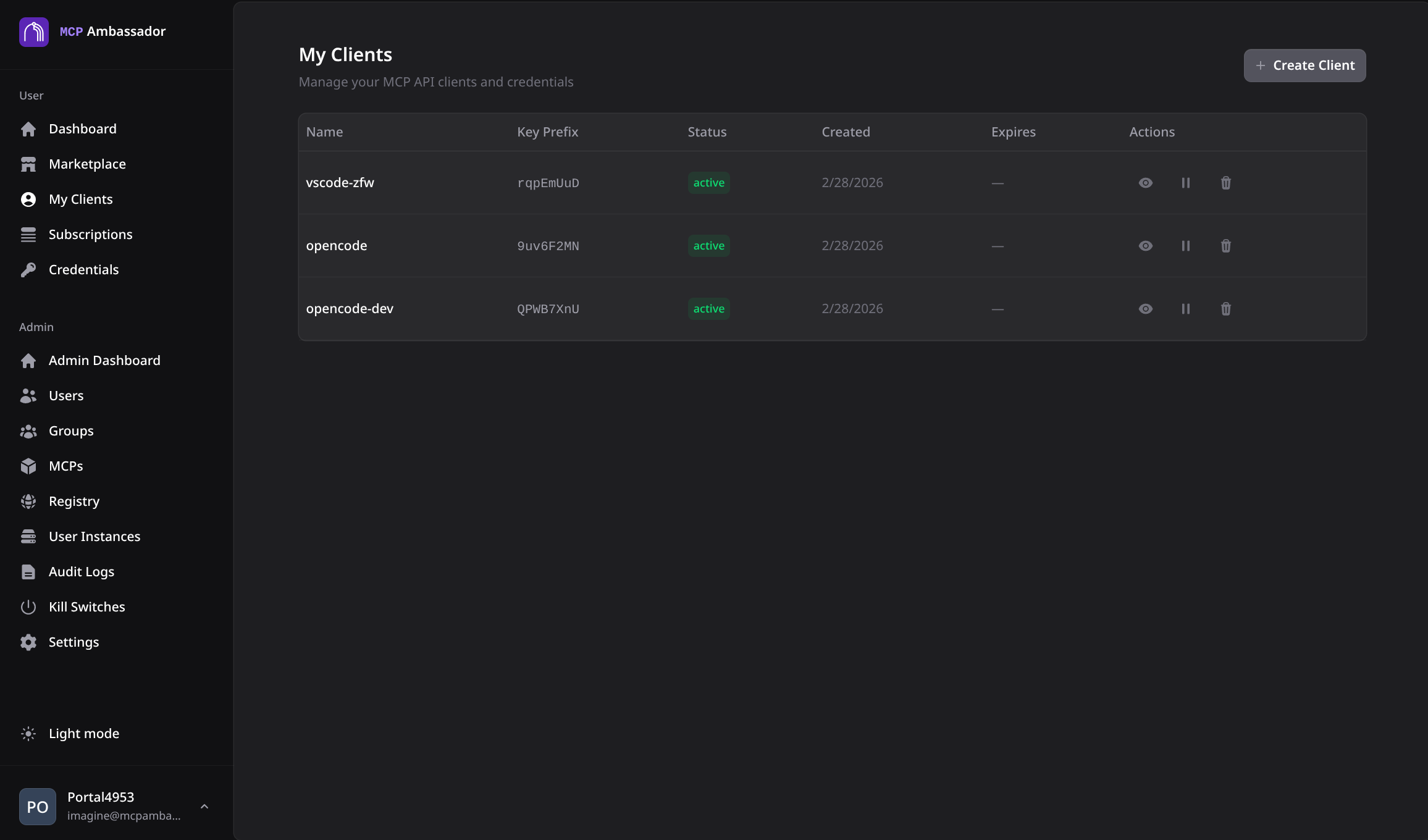
Users can view and manage their own clients at https://your-server:9443:
- Log in and navigate to My Clients
- See all registered clients with their labels and last-active timestamp
- Click Deactivate to revoke a client's session token immediately
Per-client tool selection
Users can control which tools are enabled for each client:
- Navigate to My Clients → select a client
- Click Configure Tools
- Enable or disable individual tools from your subscribed MCPs
- Save — the change takes effect on the client's next tool catalog refresh
This allows granular control: a CI/CD agent might only have read-only tools enabled, while a developer workstation has the full set.
Client states
| State | Description |
|---|---|
| Active | Client can call tools normally |
| Deactivated | Session token revoked; client cannot call tools |
Deactivating a client does not delete it. The admin can see the record in audit logs. The user can deactivate their own clients; an admin can deactivate any client.
Multiple clients per device
If a user runs multiple AI tools on the same device (e.g., Claude Desktop and VS Code), create a separate preshared key and client for each. Each client gets its own session token and tool selection.
Labels should clearly identify the client:
Claude Desktop - Work LaptopVS Code - Work LaptopCI/CD Agent - GitHub Actions
Security considerations
- Preshared keys are one-time use — each key creates exactly one client
- Session tokens are stored in memory only — not written to disk by the Ambassador Client
- Deactivation is immediate — the session token is invalidated server-side; no waiting for expiry
- Each client is audited independently — all tool invocations are logged with the specific client ID
Client performance settings
The Ambassador Client has built-in performance tuning for heartbeat frequency and tool catalog caching. These defaults are tuned for production use:
| Setting | Default | Description |
|---|---|---|
| Heartbeat interval | 120s | How often the client sends a keep-alive to the server |
| Cache TTL | 300s | How long the client caches the tool catalog before refreshing |
| Cache enabled | true | Tool catalog caching (recommended for production) |
These can be configured via amb-client-config.json or environment variables. See the client README or the Configuration page for deployment profiles.