Admin Guide
Groups & RBAC
MCP Ambassador uses group-based RBAC: users belong to groups, MCPs are assigned to groups, and users see only the MCPs their groups have access to.
RBAC model
User ──belongs to──► Group(s) ──assigned──► MCP(s)
 │
 └──registers──► Client ──selects──► Tools (subset of subscribed tools)
Five levels of access control:
- Group membership — which MCPs are available to the user at all
- Group tool policy — which of an MCP's tools a group offers (all, only some, or all except some)
- User subscription — which of the available MCPs the user has subscribed to
- Per-client tool selection — which tools from subscribed MCPs are enabled on a specific client
- Kill switches — admin override to disable a tool or entire MCP instantly
Groups
Creating a group
Via Admin UI: Navigate to Groups → Create Group → enter name and description.
Via Admin API:
curl -k -b cookies.txt \
  -X POST https://localhost:9443/v1/admin/groups \
  -H "Content-Type: application/json" \
  -d '{"name": "engineers", "description": "Engineering team"}'
Adding users to a group
Via Admin UI: Navigate to Groups → select group → Manage Members → add users.
Via Admin API:
# Add one user
curl -k -b cookies.txt \
  -X POST https://localhost:9443/v1/admin/groups/:groupId/members \
  -H "Content-Type: application/json" \
  -d '{"user_id": "user_uuid"}'

# Remove a user
curl -k -b cookies.txt \
  -X DELETE https://localhost:9443/v1/admin/groups/:groupId/members/:userId
Assigning MCPs to a group
Via Admin UI: Navigate to Groups → select group → Manage MCPs → assign MCPs.
Via Admin API:
# Assign one MCP (all of its tools)
curl -k -b cookies.txt \
  -X POST https://localhost:9443/v1/admin/groups/:groupId/mcps \
  -H "Content-Type: application/json" \
  -d '{"mcp_id": "mcp_uuid_github"}'

# Remove the assignment
curl -k -b cookies.txt \
  -X DELETE https://localhost:9443/v1/admin/groups/:groupId/mcps/:mcpId
Group tool policy
By default a group's grant covers every tool of the MCP. You can narrow a grant to specific tools. Each grant (one MCP assigned to one group) has a mode:
| Mode | What the group's members get |
|---|---|
all | Every tool of the MCP (the default; same as before) |
allow | Only the listed tools |
deny | Every tool except the listed ones |
- Exact names. Tools are listed by exact name (1 to 128 characters, case-sensitive, no wildcards). Up to 500 per grant.
- Empty lists. An
allowlist must name at least one tool, and so must adenylist. To offer every tool useall; to offer none, remove the grant. denyis open to new tools. A tool the MCP adds later is offered underdeny, but not underallow(it is still subject to pinning and approval gates). Preferallowfor an MCP with a risky tool.- Rules follow the tool name, not its definition. A changed or re-approved definition keeps its rule. A rule for a tool the MCP no longer lists is shown as an orphan in the editor.
In the admin UI
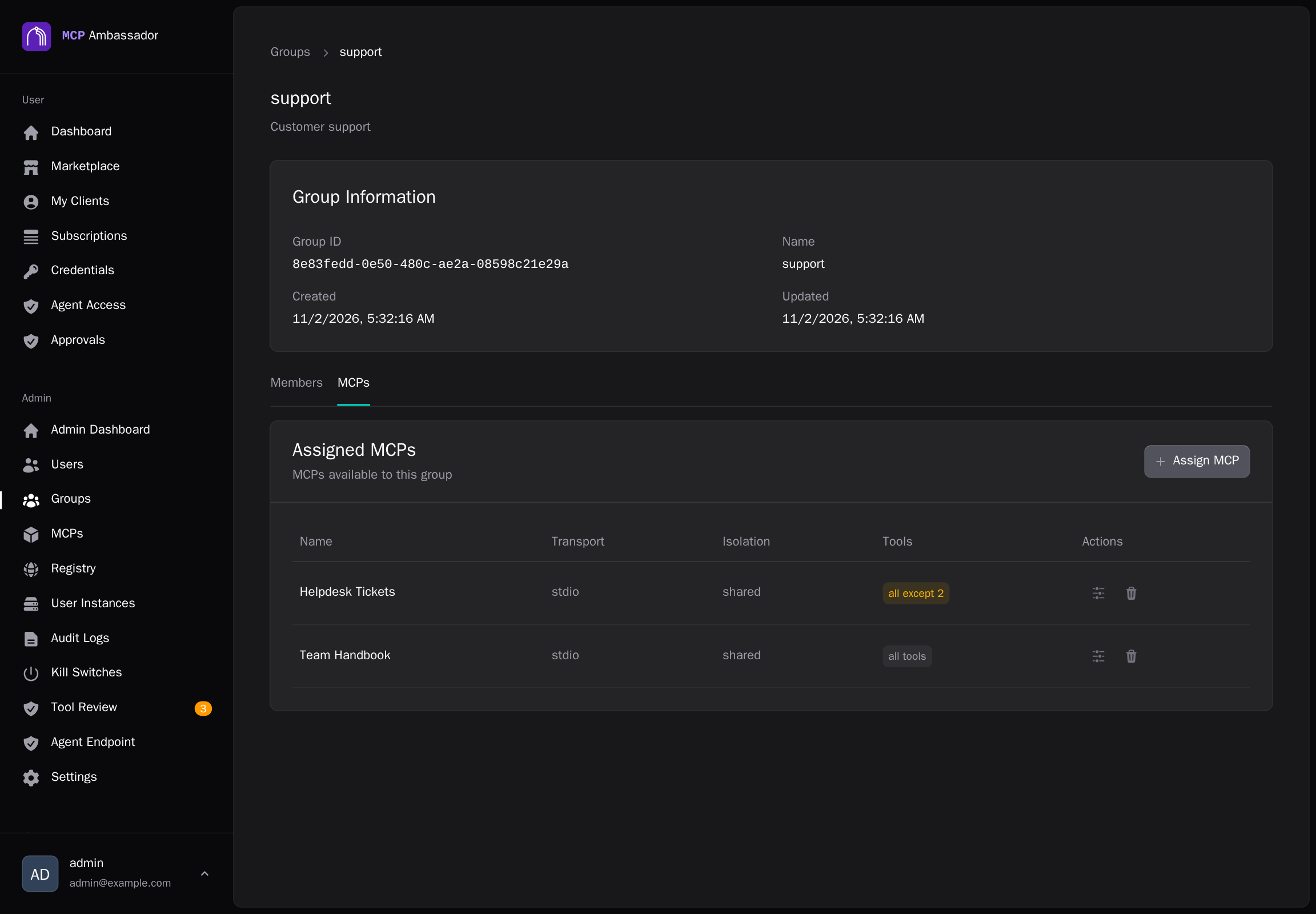
Open Groups, select the group and go to its MCPs. Each MCP shows a Tools column (all tools, N of M, or all except N). Use the edit button to choose All tools, Only selected or All except selected, and tick the tools. Switching modes clears the ticks, because an allow list and a deny list mean opposite things. The picker lists the tools Ambassador knows for the MCP, even when it is not connected.
Over the admin API
# Assign with a policy
curl -k -b cookies.txt \
  -X POST https://localhost:9443/v1/admin/groups/:groupId/mcps \
  -H "Content-Type: application/json" \
  -d '{"mcp_id": "mcp_uuid_github", "tool_mode": "allow", "tools": ["search_code", "list_issues"]}'

# Replace the policy of an existing grant
curl -k -b cookies.txt \
  -X PUT https://localhost:9443/v1/admin/groups/:groupId/mcps/:mcpId/tools \
  -H "Content-Type: application/json" \
  -d '{"tool_mode": "deny", "tools": ["delete_repo"]}'
Policy changes are audited as group.mcp_tool_policy.set.
How policies combine
A user's tools for an MCP are the union of what their groups offer. Only active groups count, and a suspended group grants nothing.
- Group A allows
read; group B hasall: the user gets every tool. - Group A denies
get-env; group B deniesfetch: the user gets every tool, because each group alone offers the other's tool.
So a deny in one group does not remove a tool another group offers. To remove a tool for everyone, use a tool kill switch.
Group policy is only one of several checks. A tool must also pass the kill switch, an approved pin, the subscription's selected tools, the agent's scopes and allowlist, and tool-profile authorization. The result is the intersection of those layers, and a deny at any layer cannot be undone by another. Approvals only gate a call the other layers already allow.
When it applies
Group access is checked on every list and call, using the user's current memberships and policies. There is no cache. Removing a grant, removing a user from the group, suspending the group or editing a policy takes effect on the user's next request. The subscription is kept, so access returns if the grant does. A tool the policy hides answers like a tool that does not exist, and is left out of the marketplace view, search and describe.
RBAC evaluation at tool call time
When an Ambassador Client calls a tool, the server evaluates:
- Session valid? — Is the session token valid and not expired?
- Client active? — Has the client been deactivated?
- User active? — Has the user account been deactivated?
- MCP accessible? — Is the MCP assigned to an active group the user belongs to, and does that group's tool policy offer this tool? (Checked on every call, not only when subscribing.)
- User subscribed? — Has the user subscribed to this MCP?
- Tool enabled on client? — Has the user enabled this tool on this client?
- Kill switch active? — Is the tool or MCP currently disabled?
If any check fails, the call is rejected with a 403 and logged in the audit trail.
Example group structure
Groups:
  engineers
    → github, gitlab, sequential-thinking, postgres

  product-team
    → github (read-only tools), linear, figma, notion

  all-users
    → time, memory, fetch, tavily-search

  devops
    → docker, cloudflare, grafana, sentry
Most users belong to all-users (base tools) plus one or more functional groups.
Per-client tool selection
Users can further restrict which tools are active on each client. This happens at the subscription level, not the group level.
Example: Alice is in engineers and has subscribed to github with all tools enabled. On her CI/CD agent client, she disables write tools:
github.create_pr— disabled on CI agentgithub.search_code— enabled on CI agentgithub.list_issues— enabled on CI agent
This means even if her session token was leaked from the CI environment, write operations are blocked.
Admin role
Admin users have access to the Admin API and Admin UI. Admin status is a flag on the user record, not a group.
By default, admin users do not have access to the User UI marketplace (they manage MCPs, not subscribe to them). In practice, admins can also be regular users by having both the admin flag and group memberships.