Getting Started
Quickstart
Get MCP Ambassador running locally in under 5 minutes.
Prerequisites
- Docker Engine 20+ and
docker composev2 - Node.js 20+ (to build the Ambassador Client)
- An AI host tool: VS Code, Claude Desktop, or any MCP-compatible client
1. Clone and start
git clone https://github.com/mcpambassador/server.git
cd server
cp .env.example .env
docker compose up
What happens on first boot:
- Self-signed TLS certificates are auto-generated
- SQLite database initialized at
./data/ambassador.db - Admin API key printed to logs
- Default accounts created (development mode)
Ports:
https://localhost:8443— Client API (for MCP clients)https://localhost:9443— Admin + User Web UI
2. Create the admin account
There are no default accounts. On first start, open https://localhost:9443 and the setup wizard asks you to create the administrator: a username (letters, numbers, hyphens and underscores), a password (8 to 128 characters, mixing at least two character types), a display name and an optional email. The wizard runs only while no admin exists.
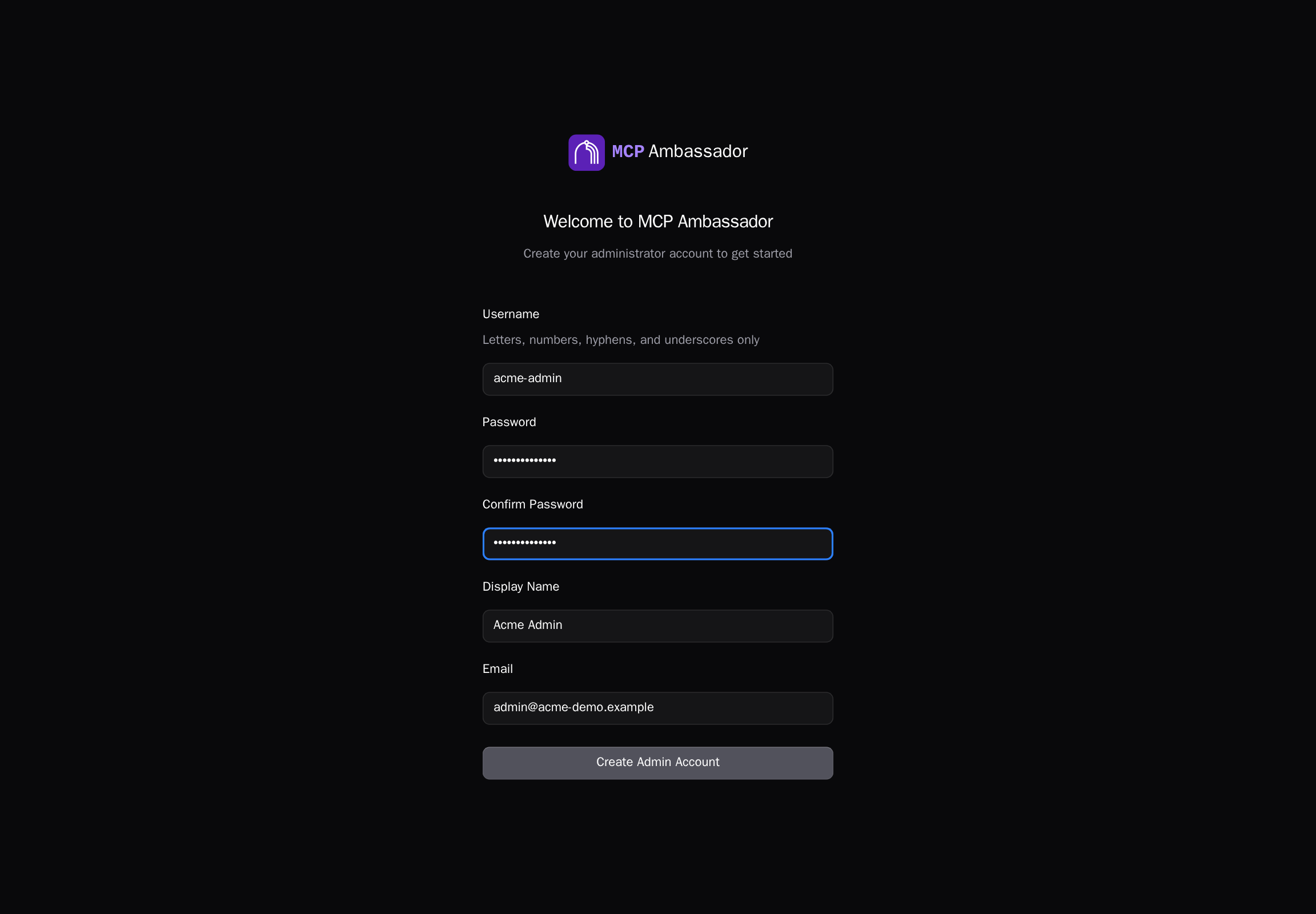
The server also writes ./data/initial-credentials.txt on first boot with an admin API key and a recovery token. Store them somewhere safe, then delete the file. It is owned by uid 1000, so reading and deleting it on the host needs sudo.
Local trial: the reference compose file runs with NODE_ENV=production, so no dev client key is created; create client keys in the UI. For a throwaway local trial you can run NODE_ENV=development LOG_LEVEL=debug docker compose up -d to get a dev client key and debug logging.
Approval gates need PUBLIC_URL. For approval gates, set PUBLIC_URL to the https URL users reach the web UI on (for example https://localhost:9443 for a local trial). In 0.10.0 the reference compose file passes it empty, which disables approval gates (gated calls fail closed and startup logs an error) and leaves the agent-endpoint issuer empty unless agent_endpoint.issuer_url is set. If set, it must be https, or http only on loopback.
3. Add an MCP (admin)
- Open
https://localhost:9443and sign in with the admin account you just created - Accept the self-signed certificate warning
- Navigate to MCP Catalog → Add MCP
- Fill in the details:
| Field | Value |
|---|---|
| Name | context7 |
| Display Name | Context7 Documentation |
| Transport | stdio |
| Command | npx -y @modelcontextprotocol/server-context7 |
| Isolation mode | shared |
- Click Save Draft → Validate → Publish
- Navigate to Groups → Assign the MCP to
all-usersgroup
4. Create a client and subscribe (user)
- In Users, create a regular user (or use an existing one), then sign out and sign in as that user
- Navigate to My Clients → Create Client
- Friendly name:
VS Code - Dev Laptop - Host tool:
vscode
- Friendly name:
- Copy the preshared key (
amb_pk_...) — shown only once - Navigate to Marketplace → click on
context7→ Subscribe - Select your client, choose the tools you want, click Subscribe
5. Connect your AI tool
Build the Ambassador Client from source (it is not on npm yet; publishing is coming), then add it to your AI tool config with the preshared key from step 4.
git clone https://github.com/mcpambassador/client.git
cd client
npm install && npm run build   # produces dist/cli.js
In the configs below, replace /absolute/path/to/client with the path to your clone.
Claude Desktop
Edit ~/Library/Application Support/Claude/claude_desktop_config.json:
{
  "mcpServers": {
    "ambassador": {
      "command": "node",
      "args": ["/absolute/path/to/client/dist/cli.js"],
      "env": {
        "MCP_AMBASSADOR_PRESHARED_KEY": "amb_pk_your_key_here",
        "MCP_AMBASSADOR_URL": "https://localhost:8443"
      }
    }
  }
}
VS Code (settings.json)
{
  "mcp": {
    "servers": {
      "mcpambassador": {
        "command": "node",
        "args": ["/absolute/path/to/client/dist/cli.js"],
        "env": {
          "MCP_AMBASSADOR_PRESHARED_KEY": "amb_pk_your_key_here",
          "MCP_AMBASSADOR_URL": "https://localhost:8443"
        }
      }
    }
  }
}
Claude Code
claude mcp add ambassador -- node /absolute/path/to/client/dist/cli.js
# Set environment variables in your shell profile or .env:
# MCP_AMBASSADOR_PRESHARED_KEY=amb_pk_your_key_here
# MCP_AMBASSADOR_URL=https://localhost:8443
6. Verify
Restart your AI tool. The subscribed tools should appear in the tool list. For Context7: resolve-library-id and query-docs.
# Check server health
curl -k https://localhost:8443/health
# → {"status":"ok"}

Next steps
- Architecture overview — understand how the gateway works
- Creating Clients — manage multiple devices
- Admin Guide: MCP Catalog — add more MCPs from the registry
- Community Registry — 75+ pre-configured MCPs